A sales manager promises a customer a delivery date without knowing the account is three months overdue. Finance raises an invoice from an email because the order never reached Zoho Books. The customer’s address is different in each system, so the GST invoice carries the wrong one. None of this is unusual, and all of it happens in businesses that own both Zoho CRM and Zoho Books.
The two products are designed to connect. Zoho documents a native integration and a Zoho Finance module that lets sales create estimates, sales orders and invoices inside CRM. But the integration has rules: what syncs, which way, how often, and what does not sync at all. Teams that connect without knowing those rules end up with duplicates, double entry, or a sync they no longer trust.
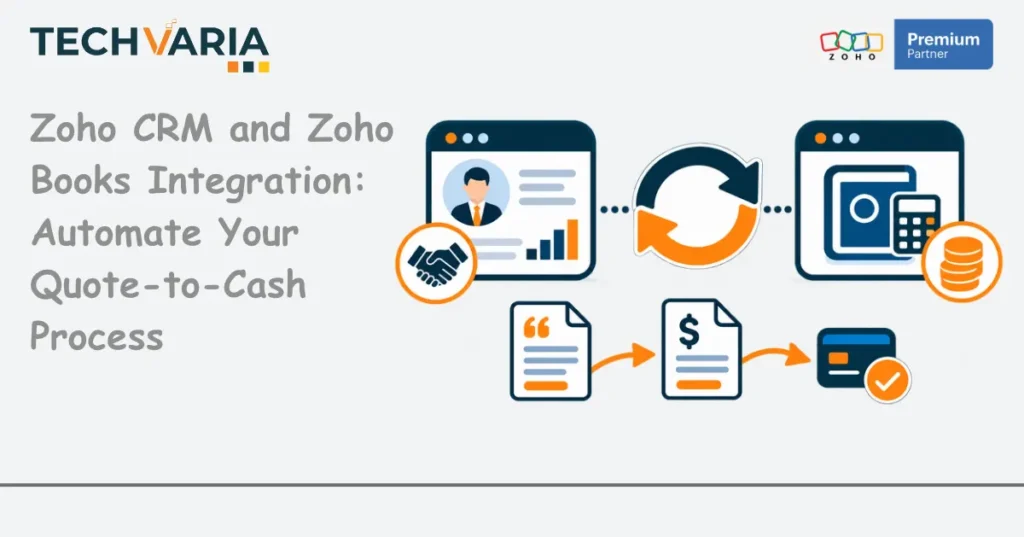
This guide explains how the Zoho CRM and Zoho Books integration works according to Zoho’s documentation, the five decisions to make before connecting, and how to run quote-to-cash as one flow.
The problem: two systems, two versions of the customer
The disconnect usually starts innocently. CRM is bought for sales and Books for accounting, often at different times and by different people. Each holds its own customer list, its own product list and its own idea of what was sold.
Three patterns follow.
Sales works blind. Reps cannot see outstanding invoices, payment history or credit status, so they sell to customers finance is chasing.
Finance re-keys. Orders agreed in CRM are emailed to finance and typed into Books, with errors in quantities, prices and tax.
The customer exists twice. Names, addresses, GSTINs or TRNs differ between the two systems, and nobody knows which is right.
What it costs
Revenue leakage. Orders that never become invoices, discounts applied inconsistently, and price changes that do not reach finance.
Slower collections. Sales has no visibility of overdue accounts, so it cannot help collect them, and keeps taking new orders from slow payers.
Compliance errors. Wrong tax registration numbers or addresses on invoices cause rework, and under e-invoicing regimes they cause rejections.
Finance time. Hours spent re-keying and reconciling instead of closing the month.
How the native integration works
The points below come from Zoho’s help documentation for the Zoho Books and Zoho CRM integration and the Zoho Finance Suite integration in CRM. Behaviour can vary by edition and region; confirm for your account.
What syncs, and in which direction
Customers. Zoho offers three choices for how CRM records become Books customers: Accounts become business customers, Contacts become individual customers, or Accounts with their Contacts. The sync can be set to fetch from CRM only, or to run both ways.
Two-way by default. Zoho describes a two-way sync, so data moves from CRM to Books and back. One exception: if several Books organisations connect to one CRM organisation, only a one-way sync is possible. This matters for multi-entity groups.
Products and vendors. CRM products can sync as Books items, and vendors can sync too. Where a record already exists, Zoho offers three choices: clone it, overwrite it, or skip it. Overwrite cannot be undone.
Timing. Per Zoho’s Finance Suite help, accounts, contacts and products sync every two hours after the initial sync. Transactions created through the Finance module sync instantly.
Currency. If multi-currency is enabled in CRM, the base currencies of the two systems must match.
The Zoho Finance module inside CRM
This is the part most businesses underuse. Once enabled, CRM users can create invoices, estimates, sales orders and purchase orders inside CRM, and these sync to Books. They can also view these documents in context on the account or deal.
Zoho’s help describes:
- Status actions in CRM: estimates can be marked sent, accepted or declined; sales orders converted to open, closed, voided or reopened; invoices marked as sent.
- A finance strip showing related payables and receivables information.
- Default Books reports available in CRM, including overdue invoices by customer.
Prerequisites, per Zoho:
- Accounts and contacts must sync both ways.
- Items must sync both ways.
- Vendors must sync both ways if purchase orders are enabled.
- The person enabling it must be an admin in all the Zoho finance applications involved.
What does not sync
Native CRM quotes, sales orders and invoices. Zoho states that transaction modules are not synced during the integration. Documents created in CRM’s own Quotes, Sales Orders or Invoices modules stay in CRM. Only documents created through the Zoho Finance module reach Books. This is the single most common source of confusion.
Deletions. Per Zoho’s help, records deleted in CRM are not deleted in Books.
Payments recorded from CRM. The documentation describes viewing receivables in CRM. It does not describe recording payments there. Payments belong in Books.
Signs your integration is not working
Many businesses believe CRM and Books are integrated because a connection was set up once. These are the signs it is not doing the job.
Finance asks sales for order details by email. If orders are being described rather than synced, sales is using native CRM quotes or no documents at all.
The same customer has different names or tax numbers in each system. The sync is either one-way, fetch-only, or was started with unmatched records that were cloned.
Customer counts differ by more than new prospects. Prospects without orders may sensibly stay in CRM only, but billed customers should match. A large gap means records were created separately in each system.
Reps cannot answer “has this customer paid?” The Finance module is not enabled, or receivables are not shown on the account.
Sync errors nobody reads. Integration errors that accumulate unreviewed are worse than no integration, because people assume the data is in step.
Someone keeps a reconciliation spreadsheet. If a person matches CRM orders to Books invoices every month, the integration is not doing that work.
Any two of these usually justify a redesign rather than another fix.
Five design decisions to make before you connect
- Which system owns the customer master? Usually CRM owns prospects and the commercial relationship, and Books owns billing details and tax registration numbers. Agree which fields are edited where, and lock the rest.
- Native CRM quotes or Finance module estimates? Pick one. If sales keeps using native CRM quotes, finance will still re-key. If you move to Finance module estimates and sales orders, remove or hide the native modules so nobody uses both.
- Where does the product list live? Books usually owns items, tax rates and HSN or SAC codes. Decide whether CRM products are created from Books or the other way round, and match existing records before switching sync on.
- Who can create invoices? Some businesses let sales raise invoices from CRM. Most keep invoicing with finance and let sales create sales orders. Set profiles accordingly.
- One entity or several? If you run more than one Books organisation (for example an Indian and a UAE entity) against one CRM, Zoho allows only one-way sync. Design for it rather than discovering it.
India and UAE considerations
Tax identity must live in one place. In India, the GSTIN and place of supply on a customer decide how tax is charged. In the UAE, the TRN does. Let Books own these fields and make them read-only in CRM, so a rep cannot change a customer’s tax identity by editing an address.
E-invoicing raises the cost of bad master data. India already requires e-invoices above its turnover threshold. In the UAE, the first phase of e-invoicing goes live from January 2027 for larger businesses. Structured invoices are validated, so customer details that were merely untidy become rejections. Cleaning master data for the integration is the same work e-invoicing needs.
India plus UAE under one CRM. A group selling from an Indian and a UAE entity often wants one sales team in one CRM. Zoho allows several Books organisations to connect to one CRM only with one-way sync. Decide which entity each account bills from, record it on the account, and accept that edits flow one way.
Currency. Zoho requires matching base currencies when multi-currency is on in CRM. Groups quoting in INR, AED and USD need to confirm currency handling for each entity before connecting.
Implementation guidance
- Map the current flow. How a quote becomes an order, then an invoice, then a payment, and where each step happens today.
- Clean both customer lists first. Remove duplicates, standardise names and fill tax registration numbers. Our guide to Zoho Books for Indian businesses covers the GST fields invoices depend on.
- Match records across systems. Decide which CRM account corresponds to which Books customer, so the first sync does not clone everything.
- Clean the item list. Same names, units and tax codes, with prices agreed.
- Choose the sync settings. The customer mapping option, the sync direction and the duplicate rule. Test in a copy or with a small set first.
- Enable the Finance module and decide which documents sales can create.
- Retire duplicate paths. Hide native CRM Quotes, Sales Orders and Invoices if you use Finance module documents instead.
- Set permissions. Who can create estimates, sales orders and invoices, and who can edit billing details.
- Give sales the view it needs. Receivables on the account, overdue invoice reports, and alerts before a rep quotes a customer on hold.
- Reconcile the first month. Compare orders in CRM with invoices in Books and fix any gaps before scaling.
For needs the native integration does not cover, such as custom approvals or third-party systems, our guide to Zoho Flow and integration strategy explains when to extend and when to keep it simple.
What to measure
Measure the flow, not the software. Four numbers show whether the integration is working:
- Orders re-keyed. Target zero; any remaining manual entry shows a gap in the path.
- Time from order to invoice. Should fall once orders sync instantly.
- Invoice corrections for customer details. A direct measure of master-data quality.
- Sales to customers on hold. Should fall once reps can see receivables.
Record them for a month before the change and a month after. That comparison is also the clearest way to show the work was worth doing.
Best practices
Decide ownership by field, not by system. Billing address in Books, account owner in CRM, and so on.
Start sync with clean, matched data. The integration copies problems as faithfully as it copies data.
Use one quote path. Two paths guarantee re-keying.
Show sales the money. Receivables visibility in CRM changes behaviour faster than any policy.
Review sync errors weekly for the first quarter.
Document the design. The next admin needs to know why native quotes are hidden.
Common mistakes
Switching on two-way sync with dirty data. Duplicates multiply in both systems.
Choosing Overwrite without a backup. Zoho notes it cannot be undone.
Expecting native CRM quotes to reach Books. They do not; only Finance module documents do.
Letting both teams edit billing details. Last edit wins, and tax details drift.
Connecting several Books organisations two-way. Zoho supports only one-way in that case.
Assuming deletions sync. Records deleted in CRM remain in Books.
An illustrative scenario: a Pune industrial distributor
This is a fictional, composite scenario for illustration. It does not describe a Techvaria client.
A Pune-based distributor of industrial consumables uses Zoho CRM for twelve sales reps and Zoho Books for finance. Reps create quotes in CRM’s native Quotes module, then email finance to raise invoices. Finance re-keys each order. About one invoice in ten needs correcting for price or GST details, and reps regularly take orders from customers on credit hold.
The company cleans and matches its customer and item lists, with Books owning billing details, GSTIN and items. It sets Accounts with their Contacts to sync both ways, enables the Zoho Finance module, and moves reps to creating estimates and sales orders inside CRM. Native Quotes and Invoices modules are hidden. Finance creates invoices from synced sales orders in Books. Reps see receivables on each account, and an overdue-invoices view is added to the sales dashboard.
The change is not more software. It is one path from quote to cash, with each team editing only what it owns.
Industry use cases
Trading and distribution. High order volumes, price lists and credit control. For distributors also managing stock across warehouses, our guide to Zoho One for trading and distribution covers the Inventory side.
B2B manufacturing. Quotes with long cycles, sales orders and milestone invoicing.
Professional services and IT firms. Estimates, retainers and invoices tied to accounts.
SaaS and subscription businesses. CRM for sales, with billing elsewhere in the Zoho finance suite.
Equipment and AMC businesses. Repeat customers with service invoices and dues.
Integration options compared
| Option | Works when | Where it breaks |
|---|---|---|
| No integration, manual re-keying | Very low volume | Errors, delays, sales blind to dues |
| Native sync of customers and items only | Sales only needs consistent customer data | Orders still re-keyed into Books |
| Native sync plus Zoho Finance module | Sales creates estimates and orders that finance invoices | Requires clean matched data, one quote path and permission design |
| Zoho Flow or custom integration | Approval logic, third-party systems, or rules the native sync cannot express | More to maintain; should extend, not replace, the native sync |

Director @ Techvaria | Solutions Architect | Low-Code & AI Automation for Growth | Proven Expertise in Digital Transformation Across Industries